



🪐✨ Jupyter MCP Server

🚨 BREAKING CHANGE Since version
0.6.0, the configuration has changed. Read more in the release notes.
Jupyter MCP Server is a Model Context Protocol (MCP) server implementation that provides interaction with 📓 Jupyter notebooks running in any JupyterLab or Notebook>=7.
This works also with your 💻 local Jupyter and with Datalayer hosted Notebooks.
🚀 Key Features
- ⚡ Real-time control: Instantly view notebook changes as they happen.
- 🔁 Smart execution: Automatically adjusts when a cell run fails thanks to cell output feedback.
- 🤝 MCP-Compatible: Works with any MCP client, such as Claude Desktop, Cursor, Windsurf, and more.
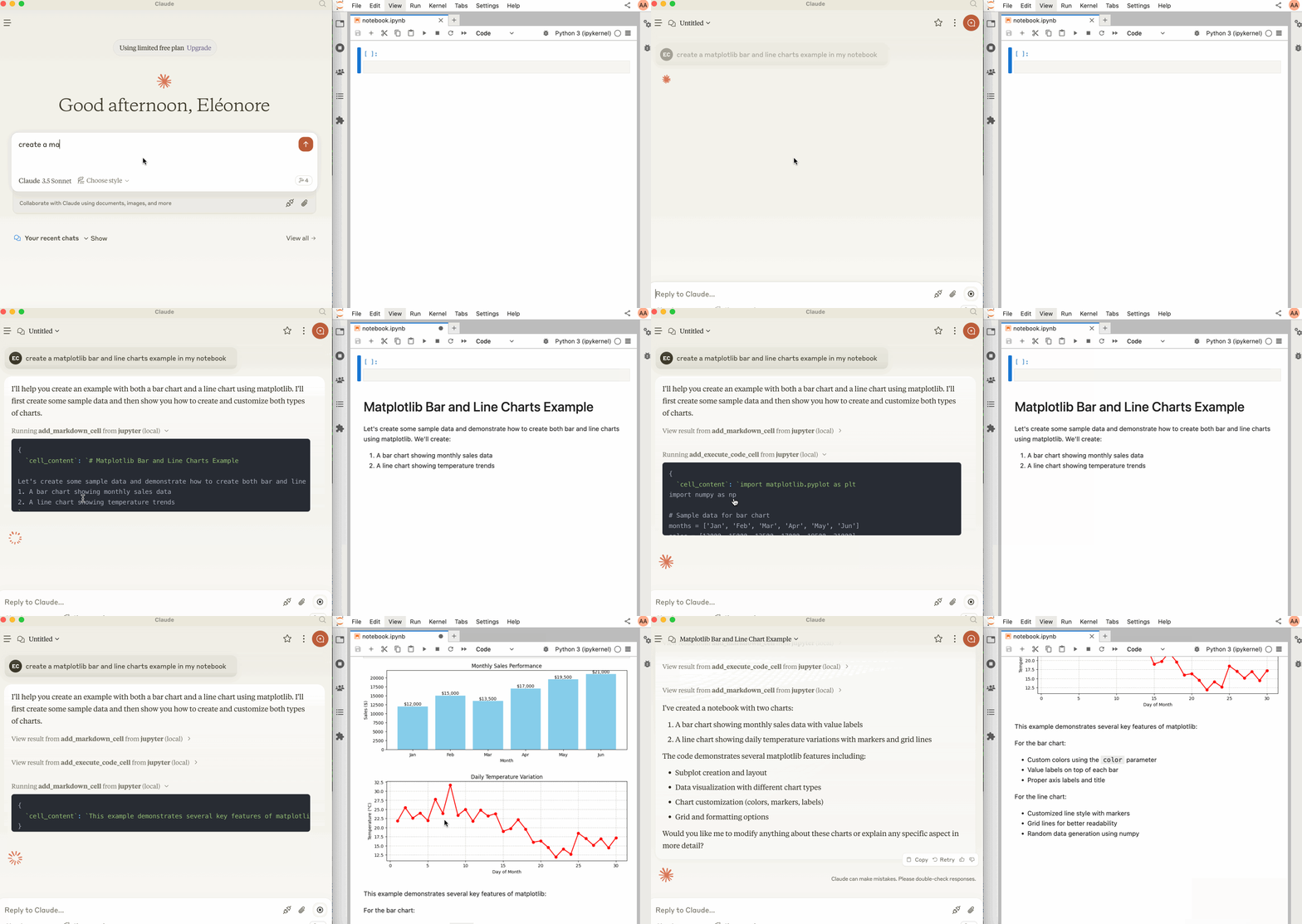
🛠️ This MCP offers multiple tools such as insert_execute_code_cell, append_markdown_cell, get_notebook_info, read_cell, and more, enabling advanced interactions with Jupyter notebooks. Explore our tools documentation to learn about all the tools powering Jupyter MCP Server.
🏁 Getting Started
For comprehensive setup instructions—including Streamable HTTP transport and advanced configuration—check out our documentation. Or, get started quickly with JupyterLab and stdio transport here below.
1. Set Up Your Environment
pip install jupyterlab==4.4.1 jupyter-collaboration==4.0.2 ipykernel
pip uninstall -y pycrdt datalayer_pycrdt
pip install datalayer_pycrdt==0.12.17
2. Start JupyterLab
# make jupyterlab
jupyter lab --port 8888 --IdentityProvider.token MY_TOKEN --ip 0.0.0.0
3. Configure Your Preferred MCP Client
[!NOTE]
Ensure the
portof theROOM_URLandRUNTIME_URLmatch those used in thejupyter labcommand.The
ROOM_IDwhich is the path to the notebook you want to connect to, should be relative to the directory where JupyterLab was started.In a basic setup,
ROOM_URLandRUNTIME_URLare the same.ROOM_TOKEN, andRUNTIME_TOKENare also the same.
MacOS and Windows
{
  "mcpServers": {
    "jupyter": {
      "command": "docker",
      "args": [
        "run",
        "-i",
        "--rm",
        "-e",
        "ROOM_URL",
        "-e",
        "ROOM_TOKEN",
        "-e",
        "ROOM_ID",
        "-e",
        "RUNTIME_URL",
        "-e",
        "RUNTIME_TOKEN",
        "datalayer/jupyter-mcp-server:latest"
      ],
      "env": {
        "ROOM_URL": "http://host.docker.internal:8888",
        "ROOM_TOKEN": "MY_TOKEN",
        "ROOM_ID": "notebook.ipynb",
        "RUNTIME_URL": "http://host.docker.internal:8888",
        "RUNTIME_TOKEN": "MY_TOKEN"
      }
    }
  }
}
Linux
{
  "mcpServers": {
    "jupyter": {
      "command": "docker",
      "args": [
        "run",
        "-i",
        "--rm",
        "-e",
        "ROOM_URL",
        "-e",
        "ROOM_TOKEN",
        "-e",
        "ROOM_ID",
        "-e",
        "RUNTIME_URL",
        "-e",
        "RUNTIME_TOKEN",
        "--network=host",
        "datalayer/jupyter-mcp-server:latest"
      ],
      "env": {
        "ROOM_URL": "http://localhost:8888",
        "ROOM_TOKEN": "MY_TOKEN",
        "ROOM_ID": "notebook.ipynb",
        "RUNTIME_URL": "http://localhost:8888",
        "RUNTIME_TOKEN": "MY_TOKEN"
      }
    }
  }
}
For detailed instructions on configuring various MCP clients—including Claude Desktop, VS Code, Cursor, Cline, and Windsurf — see the Clients documentation.
📚 Resources
Looking for blog posts, videos, or other materials about Jupyter MCP Server?
👉 Visit the Resources section.